You have heard that WhatsApp automation can answer customers while you work. You have also heard it costs a fortune or needs a developer. Both are wrong. With n8n - a free, visual automation tool - you can build a working AI WhatsApp bot in about 30 minutes, without writing code. This tutorial gives you the exact steps: what to install, which nodes to connect, what to type where, and how to test it. By the end, a customer will message your WhatsApp number and get an intelligent reply, automatically.
What You Need Before Starting (5 Minutes of Prep)
Three things, none complicated. First, an n8n instance. The easiest path is n8n Cloud's free trial - sign up, and you have a working n8n in two minutes with no server to manage. The free tier is enough for this tutorial and for light real usage. If you prefer self-hosting, n8n also runs on your own server or even a Raspberry Pi via Docker, which is free forever - but for your first bot, use the cloud trial and skip the infrastructure.
Second, a WhatsApp Business API number. Your bot needs the API - not the regular WhatsApp app - to send and receive messages programmatically. If you do not have one yet, our WhatsApp Business API setup guide walks through the whole process: Meta verification, choosing a provider, and getting your number live. You can follow this tutorial's n8n steps in parallel while the API approval processes.
Third, an AI API key. The bot's brain will be a large language model - OpenAI's API is the most documented choice, and a few dollars of credit handles thousands of test messages. Create an account, generate an API key, and keep it somewhere safe. That is the entire shopping list: n8n, a WhatsApp API number, and an AI key. Total cost to follow this tutorial: essentially zero.
The Workflow at a Glance (What We Are Building)
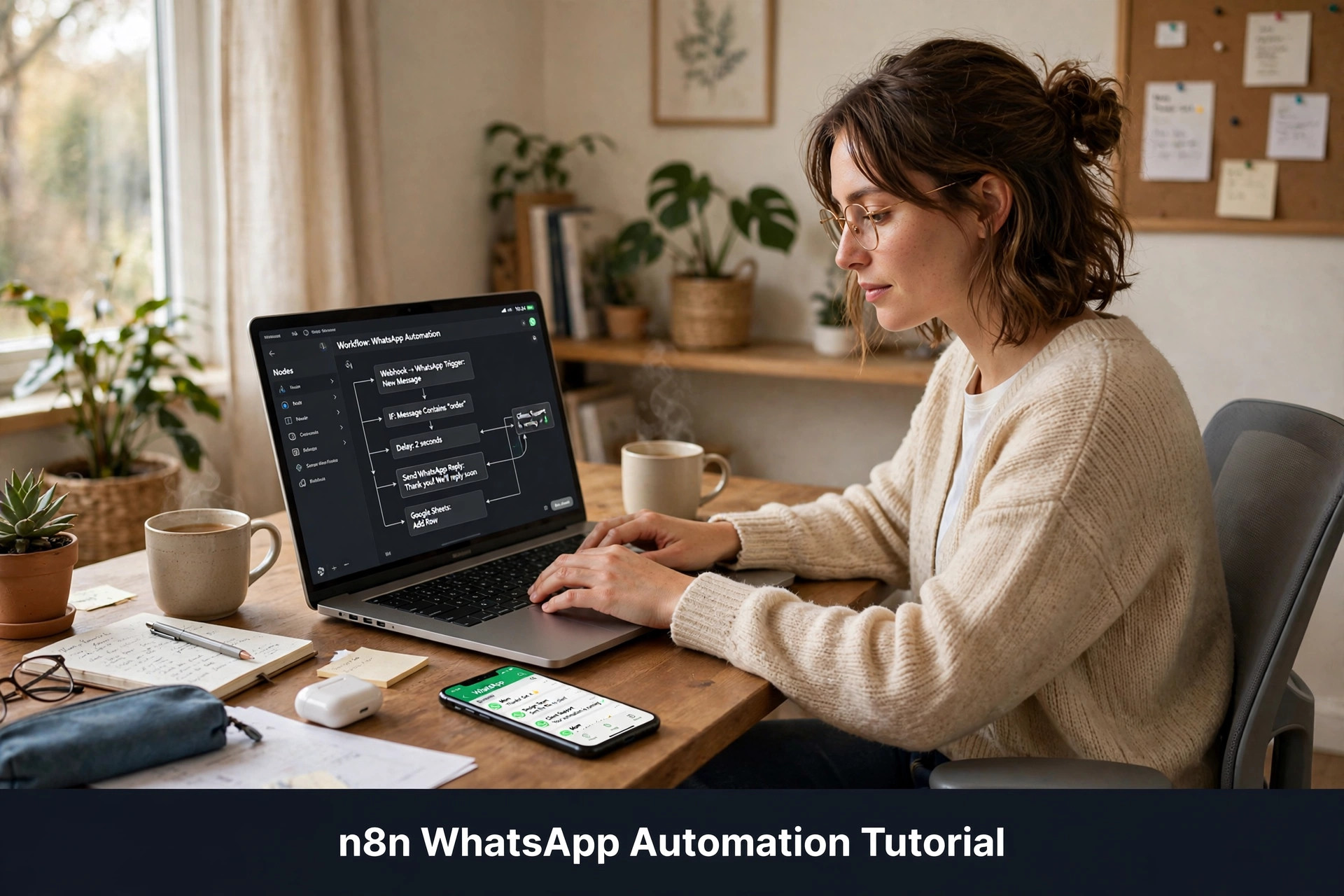
Before touching anything, understand the shape of what you are building. It is five nodes in a line, and each one does one job. Node one is the trigger: a WhatsApp webhook that fires every time someone messages your business number. Node two reads the incoming message and pulls out the text, the sender's number, and their name. Node three is the AI brain: it takes the customer's message plus your business knowledge and generates a reply. Node four sends that reply back through WhatsApp. Node five - optional but recommended - logs the conversation to a Google Sheet so you can review what the bot said.
That is the whole architecture. Message in, thinking happens, reply out, log it. Every WhatsApp bot in the world is some variation of this pipeline - the fancy enterprise ones just add more branches. Keep this mental picture while building; whenever something confuses you, ask which of the five jobs is broken.
Step 1: Create the WhatsApp Trigger Node (Minutes 0-8)
In n8n, create a new workflow and add your first node. Search for "WhatsApp" in the node panel - n8n has a built-in WhatsApp Business Cloud node. Add it and set it to trigger on incoming messages. You will need to enter credentials: your WhatsApp Business API access token and phone number ID, both from your Meta developer dashboard or your BSP. n8n will give you a webhook URL - copy it into your WhatsApp app settings as the callback URL, and complete the verification handshake.
Test it immediately: send a message from your personal phone to the business number. Back in n8n, click "Execute" on the trigger node - you should see your message appear as JSON output, with fields for the text, the sender's phone number, and their profile name. If nothing appears, the usual culprits are: the webhook URL was pasted wrong, the verify token does not match, or the Meta app is still in development mode instead of live. Fix the connection now - everything downstream depends on this trigger firing reliably.
Step 2: Extract the Message Cleanly (Minutes 8-12)
The trigger node's raw output is messy nested JSON. Add a "Set" node (or "Edit Fields" in newer n8n versions) to pull out exactly three things: the message text, the sender's phone number, and the sender's name. Name them clearly - messageText, senderPhone, senderName - because every later node will reference these names. This ten-second cleanup saves endless confusion later when you are debugging and staring at field names.
While you are here, add a simple guard: an IF node that checks whether messageText actually exists. WhatsApp sends other event types - delivery receipts, read confirmations - through the same webhook, and you do not want your AI trying to reply to a "message delivered" notification. The IF node routes real text messages down the main path and drops everything else. This is the kind of small defensive step that separates bots that work from bots that mysteriously reply to nothing at 3am.
Step 3: Add the AI Brain (Minutes 12-22)
This is the heart of the bot. Add an OpenAI node (or the AI Agent node in newer n8n versions) after your message extraction. Connect your OpenAI credentials - the API key from your prep. Now write the system prompt, which is the most important ten lines of this entire tutorial. The system prompt tells the AI who it is, what business it represents, and how to behave. Here is a template to adapt:
"You are the WhatsApp assistant for [Your Business Name], a [what you do] in [city]. Answer customer questions warmly and concisely, the way a friendly staff member texts. Your services and prices: [list them]. Your hours: [hours]. To book, ask for the customer's preferred date and time, then confirm. If you do not know an answer, say you will check with the team - never invent prices, availability, or policies. Keep replies under 60 words unless the customer asks for detail. Never mention you are an AI unless asked."
Feed the customer's messageText into the AI node as the user message, with your system prompt as context. Run a test: type a typical customer question into the node and read the reply. Is the tone right? Are the facts right? Adjust the system prompt and retest - this loop is where the bot's personality gets built. Most owners need three or four iterations to get a prompt they love. Save each version; you will thank yourself later.
One critical setting: temperature. This controls how creative versus predictable the AI is. For a business bot, set it low - around 0.3. You want consistent, reliable answers, not creative surprises. A high temperature is how bots invent discount codes that do not exist. Low temperature keeps the bot on script while still sounding natural.
Step 4: Send the Reply Back (Minutes 22-26)
Add a second WhatsApp node after the AI node, this time configured to send a message rather than receive. Map the recipient to senderPhone from step two, and the message body to the AI node's output text. That is literally it - two field mappings and the loop is closed. Message comes in, AI thinks, reply goes out.
Test end to end now: message the business number from your personal phone with a real question - "What are your hours?" or "How much for a haircut?" - and watch the reply arrive. Time it. From your send to the bot's reply should be under ten seconds in most cases. If it is slower, the usual cause is the AI model choice - smaller, faster models reply quicker and cost less. You can always upgrade the model later; speed beats eloquence for customer messages.
Step 5: Log Everything (Minutes 26-30)
The final node is the one beginners skip and veterans never do: logging. Add a Google Sheets node at the end of the workflow that appends one row per conversation - timestamp, sender name, sender phone, their message, the bot's reply. This sheet becomes your quality-control dashboard, your training-data goldmine, and your proof of ROI all in one.
Review the sheet weekly for the first month. You will spot the questions the bot fumbled, the tone-deaf replies, the moments it should have handed over to you. Each fix goes back into the system prompt or into a new rule. Bots do not improve by themselves - they improve because an owner reads the logs for fifteen minutes a week. This habit is the entire difference between a bot that works and a bot that embarrasses you.
Want this for your business?
ReplyPilot builds a custom whatsapp automation setup for your business — answering customer questions instantly, taking orders and bookings, and handing off to you when a human is needed.
Ask on WhatsApp — it's freeMaking It Smarter: Three Upgrades Worth Doing Next
Once the basic bot works, three upgrades deliver the most value. First, a knowledge base. Instead of cramming everything into the system prompt, store your FAQs, price list, and policies in a document the AI can search - n8n supports vector stores and simple document retrieval. This keeps answers accurate as your business changes; update the document, not the prompt. Second, booking integration. Connect a Google Calendar node so the bot can check real availability and create real appointments, not just promise to. The calendar check turns the bot from an answer machine into a revenue machine.
Third, human handoff. Add a keyword check - words like "complaint," "refund," "manager," or "human" - that routes the conversation to you immediately with full context, instead of letting the bot argue. The best bots know exactly when to quit. These three upgrades are each an afternoon's work, and together they take the bot from demo to genuinely production-grade. For inspiration on what a mature setup looks like, see how lead capture automation structures the handoff between bot and human.
Mistakes That Break n8n WhatsApp Bots
The number one killer is an untested webhook going live. If the trigger misfires, nothing downstream works and customers get silence - worse than no bot at all. Always test with your own phone for a full day before telling customers about the number. Number two: no error handling. What happens when the OpenAI API is slow or down? Add an error branch that sends a graceful fallback - "Thanks for messaging us! We're experiencing high volume and will reply shortly" - instead of letting the workflow die silently. n8n's error workflow feature exists for exactly this.
Number three: the bot that never says "I don't know." An AI with high temperature and a vague prompt will invent answers rather than admit ignorance - fake prices, fake availability, fake policies. The system prompt's "never invent" line plus low temperature is your defence. Number four: ignoring WhatsApp's 24-hour window. The bot can reply freely within 24 hours of the customer's message; after that, only approved templates work. Design your follow-ups accordingly - our WhatsApp broadcast marketing playbook covers the template strategy in depth.
What It Costs to Run
Honest math for a typical small business doing a few hundred bot conversations a month. n8n Cloud starter plans cover this volume comfortably; self-hosting is free if you have a server. The AI API costs pennies per conversation - a few dollars a month at small-business scale. WhatsApp API charges per 24-hour conversation through Meta, plus your BSP's platform fee. All in, most small businesses run the whole stack for well under fifty dollars a month - less than the revenue from a single recovered customer in most industries.
The expensive part is not the tooling; it is your time in week one. Budget a focused afternoon for the build and an hour a week for log review in month one. After that, the system mostly runs itself. Compare that against the alternative - a developer-built custom bot at thousands of dollars, or staff time spent retyping the same answers forever - and the 30-minute n8n build is the obvious starting point for any owner willing to learn one new tool. The skills transfer, too: once you can build this, you can automate almost anything in your growing business.
Troubleshooting: When Something Does Not Work
Every builder hits a wall somewhere; here are the fixes for the walls you will actually hit. Problem one: the trigger never fires. Almost always a webhook issue - the callback URL in Meta does not match n8n's URL character-for-character, or the verify token differs by one character. Copy-paste both again, slowly. Problem two: the AI node throws an authentication error. Your API key is wrong, expired, or pasted with a trailing space. Regenerate it and paste carefully.
Problem three: the bot replies but the reply never arrives on WhatsApp. Check the send node's recipient mapping - it must be the full international-format number from the trigger, not a name or a short code. Problem four: the bot answers but the answers are wrong. This is a prompt problem, not a plumbing problem. Read five real conversations from your log sheet, find the pattern in the failures, and rewrite the relevant part of the system prompt. Problem five: everything works in testing but breaks under real load. Usually the AI API rate limit - upgrade your API tier or add a queue node. Work through these in order and you will resolve ninety percent of issues without ever touching a forum.
Keeping It Running: Fifteen Minutes a Week
The build takes an afternoon. Keeping it good takes fifteen minutes a week — and this is the part most tutorials skip. Open your Google Sheet log every Monday morning with your coffee. Scan the last seven days of conversations and look for three things: questions the bot answered wrong, questions it could not answer at all, and moments where a customer sounded frustrated.
Wrong answers get a system-prompt fix the same day. Unanswered questions get added to your knowledge document — each one is a gap your customers just pointed out for free. Frustrated customers get a personal follow-up from you, not the bot. That is the whole maintenance routine. Fifteen minutes, once a week, and your bot gets smarter every single month instead of slowly going stale.
Once a quarter, do a slightly bigger review. Check your AI API bill — is usage creeping up? Check the handoff rate — is the bot escalating more than it used to, which might mean your business changed and the prompt did not? And re-read your system prompt with fresh eyes; prompts written in a hurry accumulate cruft. A bot that gets fifteen minutes a week will still be excellent a year from now. A bot that gets zero attention will embarrass you within three months. The difference is never the technology — it is the owner.
What to Build Next: Three Workflows That Pay for Themselves
Once the basic bot is humming, you will start seeing automation opportunities everywhere. Resist the urge to build ten things. Build these three, in this order, because each one directly protects revenue.
One: the abandoned booking saver
When a customer starts a booking conversation but goes quiet for two hours, your workflow sends one gentle nudge: still want that slot? It is held for you until 6pm. This single workflow recovers bookings that would otherwise evaporate. Build it with a Wait node plus a condition checking whether the booking completed. One recovered booking a week pays for your entire automation stack for the year.
Two: the review collector
Twenty-four hours after a completed appointment or delivery, the workflow sends a short message asking how it went. Happy customers get a link to leave a public review; unhappy ones get routed to you privately first. Reviews compound — each one makes the next customer trust you a little more — and this workflow collects them on autopilot while catching complaints before they go public.
Three: the no-show guard
A reminder message the evening before each appointment, asking for a quick confirm. Customers who confirm show up; customers who do not get their slot offered to the waitlist. For businesses where a no-show means an empty chair and lost income — clinics, salons, consultants — this workflow alone justifies everything. Three workflows, each protecting real money. That is how a thirty-minute tutorial turns into a genuine business asset.
The Soft Launch: Testing With Real Customers Before You Announce It
Never announce the bot to all your customers on day one. Run a quiet soft launch first: tell five friendly regulars that you are testing a new WhatsApp assistant and ask them to try it. Give them your personal number as backup so any failure lands softly. Watch every conversation in your log sheet for a week. You will discover the questions you forgot to train, the phrasing that confuses people, and the edge cases your testing never imagined.
Fix what the soft launch reveals, then widen to twenty customers, then fifty. Each round makes the bot sharper, and by the time you announce it properly, it already handles your real world instead of your guesses about it. The businesses whose bots embarrass them are almost always the ones who skipped this step and launched to everyone at once. A two-week soft launch is the cheapest insurance in this entire tutorial — and the customers who helped test it become your most loyal advocates, because they watched you build something for them.
Frequently Asked Questions
Do I need to know how to code to build this n8n WhatsApp bot?
No. This entire tutorial uses n8n's visual node editor - you drag nodes, connect them, and fill in fields. The only "code" is the system prompt, which is plain English describing how the bot should behave. If you can use a spreadsheet, you can build this bot.
How much does it cost to run an n8n WhatsApp bot monthly?
For a typical small business: n8n Cloud starter plan, a few dollars in AI API usage, Meta's per-conversation WhatsApp charges, and your BSP platform fee. Total is usually well under $50/month - far less than one recovered customer is worth in most businesses. Self-hosting n8n makes the automation layer free.
Can the bot really book appointments, or just answer questions?
It can do both. Connect a Google Calendar node and the bot checks real availability and creates real bookings during the conversation. Start with Q&A for week one, add calendar booking as your first upgrade - it is the feature that turns the bot from helpful into revenue-generating.
What happens when the bot does not know an answer?
A well-built bot says it will check with the team - never invents an answer. Set a low AI temperature (around 0.3) and include an explicit "never invent prices or policies" line in the system prompt. Add keyword-based human handoff for complaints and complex requests so nothing important gets fumbled.
Is this compliant with WhatsApp's rules?
Yes, as long as you use the official WhatsApp Business API through an approved provider and respect the messaging rules: reply freely within 24 hours of a customer's message, use approved templates after that, and only send marketing to opted-in contacts. Never use unofficial workarounds - they get numbers banned.