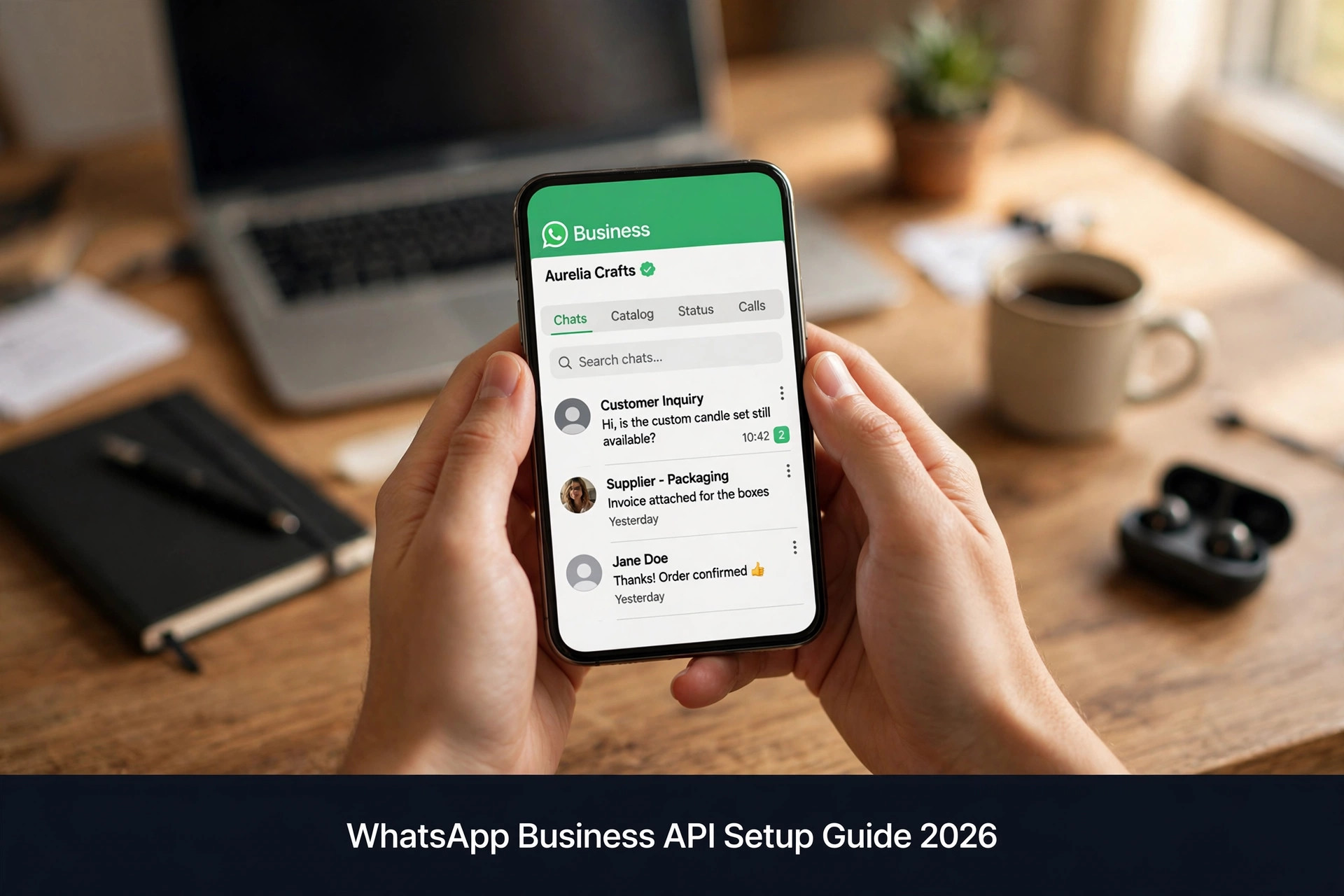
You have been using the WhatsApp Business app for your shop. It works - until it does not. You cannot connect it to your website chatbot. You cannot send broadcasts to more than 256 people. You cannot have two team members answer the same chat properly. Every growing business hits this wall, and the way past it is the WhatsApp Business API - officially called the WhatsApp Business Platform. This guide walks you through the entire setup, step by step, in plain language. No developer jargon, no skipped steps, no surprises about cost.
WhatsApp Business App vs WhatsApp Business API: The Real Difference
The free WhatsApp Business app is a phone app with some business features: a business profile, quick replies, labels, a catalogue. It is fine for a one-person shop answering messages manually. But it lives on a phone, it cannot connect to other software, and WhatsApp limits what it can do. The moment you want a chatbot to answer automatically, or you want to send order updates to a thousand customers, or you want three staff members sharing one inbox on their computers - the app cannot do it.
The API is a completely different thing. It is not an app at all - it is a connection that lets business software send and receive WhatsApp messages. Through it, a chatbot platform can answer customers automatically, your online store can send order confirmations, and your whole team can work from a shared inbox on desktop. There is no 256-person broadcast limit like the app has; instead you use message templates approved by WhatsApp. The trade-off: the API is not free like the app, it requires Meta verification, and you set it up through an approved provider rather than downloading something. For any business that has outgrown manual replies, it is the only path forward.
A quick way to decide: if you personally read and reply to every message within a couple of hours, the app is still fine. If messages pile up unanswered, if you need automation, if multiple people need inbox access, or if you want to send notifications at scale - you need the API. Most of the businesses covered in our niche guides, from WhatsApp automation for clothing boutiques to WhatsApp automation for restaurants, eventually make this jump when manual messaging stops keeping up. The switch usually pays for itself within the first month through recovered conversations alone.
What You Need Before You Start
Gather four things before you begin, and the process goes smoothly. First, a Facebook Business Manager account - now called Meta Business Suite. The API lives inside Meta's ecosystem, so you need a verified business presence there. If you run Facebook or Instagram ads, you probably have one already. Second, a dedicated phone number that is not currently used on WhatsApp or the WhatsApp Business app. This is the number customers will message. It can be a mobile number or a landline/virtual number - but it must be able to receive a voice call or SMS for verification, and it cannot already be registered on WhatsApp. Many businesses buy a cheap second SIM or a virtual number for this purpose.
Third, your business documents. Meta verifies that you are a real business, which means a business licence, tax registration, or utility bill in the company name - the exact requirements vary by country. Have a clear photo or scan ready. Fourth, a website or Facebook page that shows your business is real. Meta checks this during verification. A one-page website with your business name, address and contact details is enough. If you do not have these four things ready, the process stalls at the verification step - which is where most setups get stuck, so prepare upfront.
Step 1: Set Up Meta Business Manager
Go to business.facebook.com and create a Business Manager account with your work email - not a personal Gmail if you can avoid it. Add your business details exactly as they appear on your official documents: legal business name, address, phone, website. Mismatches between what you type here and what your licence says are the number one cause of verification delays, so copy carefully. Then go to Business Settings, then Security Center, and start the business verification process.
Meta will ask you to confirm your business with documents and possibly a phone call or email to an official domain. This takes anywhere from a few hours to a few days. While you wait, add a second admin to the account - a partner or a trusted team member. If your only admin loses access to their Facebook account, you can be locked out of everything, and recovery is painful. Two admins is cheap insurance. Do not skip this.
Step 2: Choose a BSP (Business Service Provider)
You cannot connect to the WhatsApp API directly as a small business - Meta requires you to go through an approved Business Service Provider, or BSP. Think of BSPs as the middlemen who handle the technical connection: Twilio, 360dialog, Vonage, WATI, AiSensy, Interakt, and dozens of others. They provide the dashboard where you will actually manage messages, and many bundle chatbot builders, broadcast tools, and team inboxes on top.
Choosing is simpler than the long list suggests. Ask three questions. One: does it serve businesses in my country, with local pricing and support? Some BSPs are strong in India but weak in the Gulf; some price in dollars only. Two: does it include the tools I need, or just the raw API? If you want a no-code chatbot builder and broadcast campaigns in one place, pick a BSP that bundles them - it is cheaper and simpler than buying the API from one vendor and the chatbot from another. Three: what is the real monthly cost at my message volume? BSPs charge a platform fee plus Meta's per-message charges, and the platform fee varies enormously. Get a written quote for your expected volume before committing. A fifteen-minute comparison call with two shortlisted BSPs will tell you more than a week of reading feature pages.
Avoid two traps. The first is choosing purely on price: the cheapest BSP with a terrible dashboard will cost you hours every week. The second is signing a long contract before testing. Most reputable BSPs offer monthly plans or free trials - use them. Send test messages, try the broadcast feature, check whether support actually replies. You are choosing a business partner, not just a pipe.
Step 3: Register Your Number and Display Name
Inside your BSP dashboard, you will register the phone number you prepared. WhatsApp sends a six-digit code by SMS or voice call to that number - enter it, and the number is linked. Remember: this number must not be active on WhatsApp or the WhatsApp Business app. If it is, you must delete that account first, which erases its chat history - so migrate anything important before you start.
Next comes your display name - the name customers see instead of your number. WhatsApp has rules here: it must match your business name, no generic words like "Shop" alone, no excessive capitals, no misleading names. "Bright Plumbing Services" is fine; "BEST PLUMBER CHEAP" will be rejected. If WhatsApp rejects your display name, you get limited appeals, so get it right the first time. Use your registered business name or the trading name on your documents.
Want this for your business?
ReplyPilot builds a custom whatsapp automation setup for your business — answering customer questions instantly, taking orders and bookings, and handing off to you when a human is needed.
Ask on WhatsApp — it's freeStep 4: Get Your Message Templates Approved
Here is the part that confuses everyone. On the API, you cannot just type any message and send it to a customer who has not messaged you recently. WhatsApp requires pre-approved message templates for business-initiated conversations - order updates, appointment reminders, delivery notifications, re-engagement messages. You write the template with placeholders, like "Hi {{1}}, your order {{2}} ships tomorrow," submit it in your BSP dashboard, and WhatsApp usually approves or rejects it within a few hours.
Templates get rejected for predictable reasons: marketing language disguised as a utility message, too many variables, spelling errors, or content WhatsApp does not allow. Write templates that are clearly useful to the customer - confirmations, reminders, updates - and they sail through. Pure promotions need the marketing template category, which has stricter rules and requires explicit customer opt-in. Keep a library of ten to fifteen approved templates covering your common situations, and you will rarely need to write a new one in a hurry.
One more rule that matters: the 24-hour window. If a customer messages you, you can reply freely - any message, no template needed - for 24 hours after their last message. After the window closes, you must use an approved template to restart the conversation. Design your flows around this: the chatbot should capture what it needs while the window is open, and your follow-ups should use templates. Every good WhatsApp automation respects the window; fighting it gets numbers restricted.
Step 5: Connect Your Chatbot and Team Inbox
With the number live and templates approved, the fun part starts: connecting the automation. If your BSP includes a chatbot builder, you will build conversation flows in a visual editor - no code needed. Start with the five situations that eat most of your time: greeting and hours, price questions, booking or ordering, order status, and handoff to a human. Train each flow with the actual words your customers use, not corporate language. Test every flow yourself from a personal phone before any customer sees it. The same flow design applies to capturing leads — see lead capture automation.
Then set up the team inbox. This is where the API shines over the app: multiple team members can answer from the same business number on desktop, with assignment rules, internal notes, and conversation history. Define who handles what - new inquiries to sales, complaints to the manager - and set a rule that no conversation sits unassigned for more than a few minutes. The businesses that get the most from the API treat the inbox as a shared mission, not one person's phone.
What It Really Costs in 2026
Two cost layers: Meta's conversation charges and your BSP's platform fee. Meta charges per 24-hour conversation, not per message - one conversation can include many back-and-forth messages for a single price. Rates vary by country and by conversation category: utility conversations (order updates) cost less than marketing conversations (promotions), which cost less than authentication messages. In most markets, a utility conversation costs a few cents. A business having a thousand customer conversations a month might pay tens of dollars to Meta - genuinely small money.
The BSP platform fee is the bigger line item: anywhere from free tiers with limits, to twenty or thirty dollars a month for small-business plans, to hundreds for enterprise setups with advanced automation. Add them together honestly before you commit: BSP fee plus estimated Meta charges at your volume. For most small businesses, the total lands well below the cost of the staff time it replaces. Prices vary by country and provider and change over time — confirm current rates with your BSP before budgeting. The expensive mistake is not the monthly fee - it is paying for a plan whose limits you constantly hit, or a cheap plan whose missing features force manual workarounds. Choosing the right platform matters — see our best AI chatbots for small business comparison.
Mistakes That Get Numbers Banned (Avoid These)
WhatsApp protects its users aggressively, and banned numbers are painful to recover. The number one killer is spammy broadcasting - sending promotions to people who never opted in. Every marketing message must go to someone who explicitly agreed to hear from you, and every message should include a clear way to opt out. Buy a contact list and blast it, and your number's quality rating drops fast; drop far enough and messaging gets restricted or the number gets banned.
The second killer is template abuse - using utility templates to sneak in marketing content. WhatsApp reviews this and penalises it. The third is ignoring the quality rating dashboard in your BSP. WhatsApp scores your number based on how recipients react: blocks and reports drag it down. Watch it weekly. If it slips from green to yellow, pause marketing messages immediately and figure out why - usually it is frequency, relevance, or list quality. A number with a sustained green rating can message freely; a red-rated number is fighting for its life. Protect the rating like you protect your shop's reputation, because that is what it is. One careless intern with broadcast access can undo months of careful list-building in a single afternoon.
How Long Does the Whole Thing Take?
Honest timeline: if your documents are ready, Meta business verification takes one to five days. Number registration and display name approval: a few hours. Template approvals: a few hours each, done in parallel. Chatbot building: one to three days depending on complexity. Realistic total: one to two weeks from starting to having a working automated inbox. The businesses that take a month are usually the ones who started without documents ready and bounced between verification rejections.
Do not rush the chatbot training to hit a deadline. A half-trained bot that misunderstands customers is worse than no bot - it burns the trust you need for the channel to work. Give the conversation flows the same care you would give a new employee's first week. And keep the WhatsApp Business app running on your old number during the transition if you need to; migrate customers to the new API number gradually with a broadcast explaining the change, rather than cutting over overnight. Patience in week one pays off in month six, when the system runs itself and you wonder how you ever managed the inbox by hand.
Frequently Asked Questions
Do I need the WhatsApp Business API, or is the free app enough?
The free app is enough if you personally reply to every message within a couple of hours and work alone. You need the API when messages pile up unanswered, when you want chatbot automation, when multiple team members need shared inbox access, or when you want to send notifications or broadcasts at scale. Most growing businesses hit this wall within a year or two.
How much does the WhatsApp Business API cost per month?
Two layers: Meta charges per 24-hour conversation (usually a few cents each, varying by country and category), and your BSP charges a platform fee (from free tiers to $20-30/month for small-business plans). For most small businesses the total is well under $100/month - far less than the staff time it replaces. Always get a written quote at your expected message volume.
Can I use my existing phone number for the WhatsApp API?
Only if it is not currently registered on WhatsApp or the WhatsApp Business app. If it is, you must delete that account first (which erases its chat history). Most businesses use a dedicated second number - a spare SIM or virtual number - so the transition is clean and nothing is lost.
How long does WhatsApp API approval take?
With documents ready: Meta business verification takes 1-5 days, number and display name registration a few hours, template approvals a few hours each. Realistic total is one to two weeks from start to a working automated inbox. Delays almost always come from mismatched business documents, so prepare those carefully upfront.
Can I get banned from the WhatsApp Business API?
Yes, if you spam. Sending promotions to people who never opted in, sneaking marketing into utility templates, or getting mass-blocked will tank your quality rating and can restrict or ban your number. Follow the rules - opt-in only, honest templates, watch your quality dashboard weekly - and you will be fine. Our WhatsApp broadcast marketing playbook covers compliant broadcast campaigns in detail.